
Multi-Approval Workflows
Require team sign-off on sensitive operations.
How it works
4 steps- Step 1Request
The Owner or a Treasury Manager starts an operation and confirms it with 2FA.
- Step 2Hold
Nothing runs yet. The request waits in Approvals and approvers are emailed.
- Step 3Approve
Each approver reviews it and approves with their own 2FA.
- Step 4Execute
Once enough approvers sign off, it runs automatically.
Supported operations
6 operations| Operation | What needs approval | |
|---|---|---|
Withdrawal | Funds | Sending funds to an external address. |
Internal Transfer | Funds | Sending funds to another CoinPayments account. |
Conversion | Funds | Converting one currency to another. |
Bank Payout | Funds | Paying out to a linked bank account. |
Merchant Settings | Settings | Changing payment settings, such as discounts. |
Auto-Sweep | Settings | Turning auto-sweep on or off, or changing it. |
For settings changes, your current settings stay in place until the change is approved.
Roles
Who can do what| Role | Set up rule | Start requests | Approve |
|---|---|---|---|
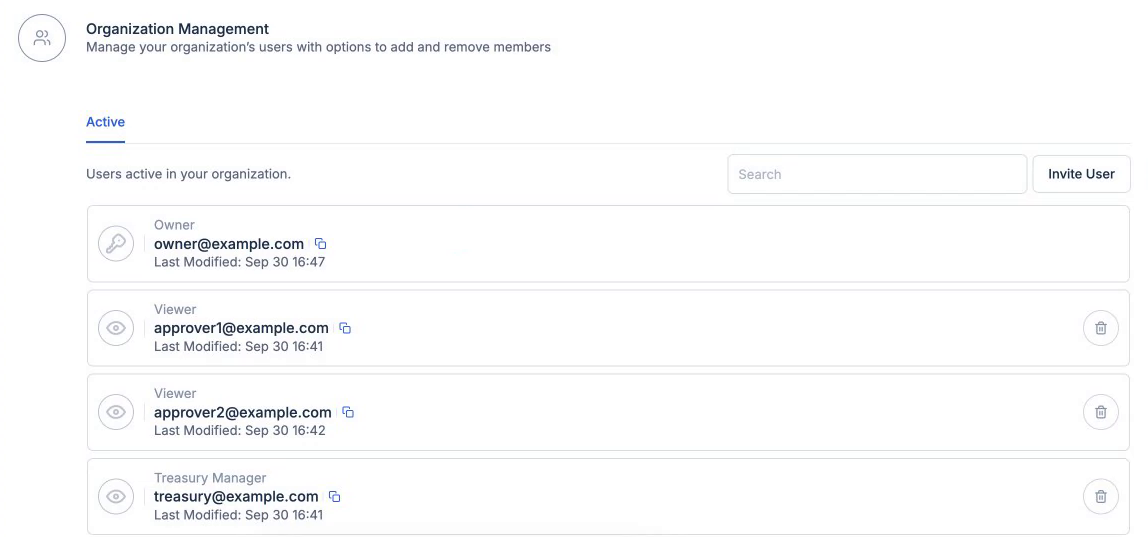
Owner Full administrative control over the organization. | Yes | Yes | If added |
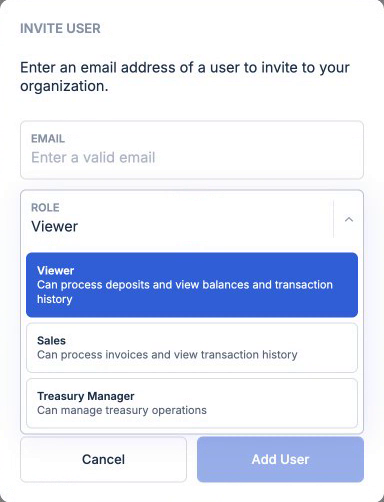
Treasury ManagerNew Can manage treasury operations. | No | Yes | If added |
Viewer Can process deposits and view balances and transaction history. | No | No | If added |
Sales Can process invoices and view transaction history. | No | No | If added |
Approvers are chosen person by person, not by role. The Owner can add any active team member, including themselves.
Set up multi-approval
OwnerGo to Account Settings and open Multi-Approval. Only the Owner can see and edit it.
Add approvers from your active team members.
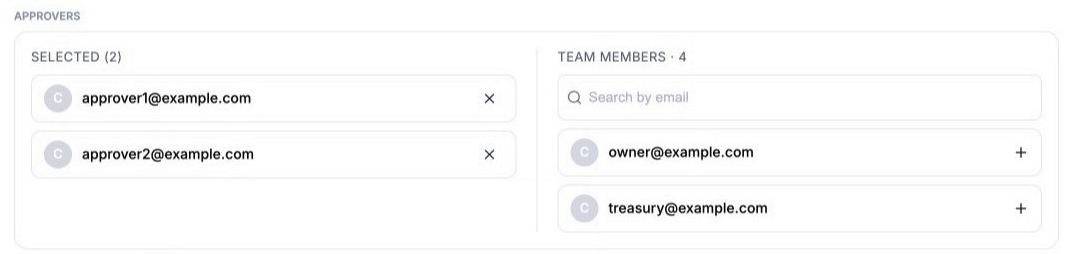
Choose how many approvers must sign off on each request, for example 2 of 3.
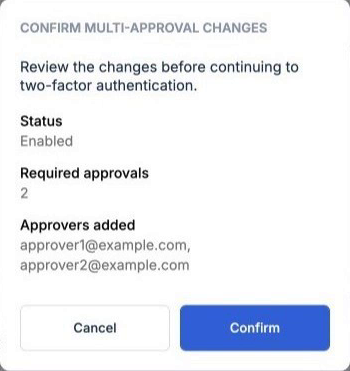
Review the summary, then confirm with your 2FA code. Every later change to the rule is confirmed the same way.
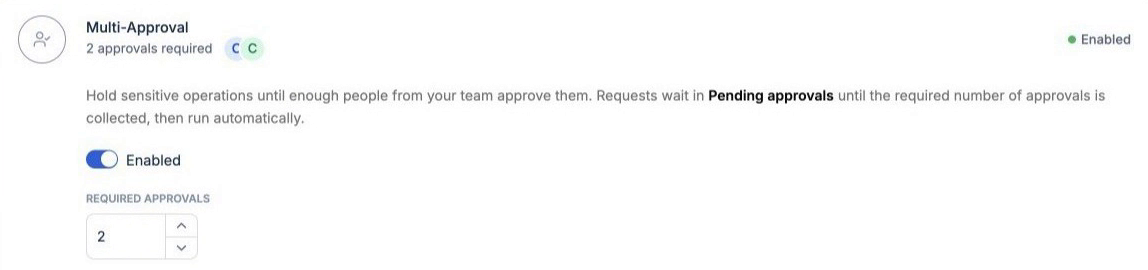
Multi-Approval shows Enabled with the number of approvals required. Use the toggle to pause it without losing your setup.
Review and approve
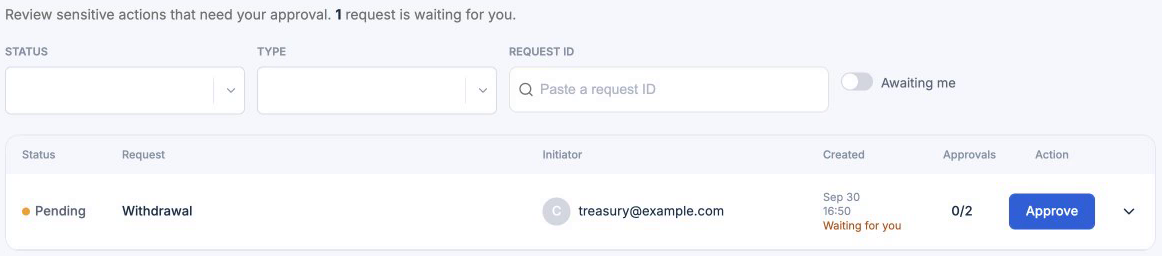
ApproversApprovers get an email when a request needs them. Switch to the organization with the Profile Switcher and open Approvals in the sidebar. Turn on Awaiting me to see only requests waiting for you.
Expand the request to check the amount, destination and who asked, plus who has approved so far.
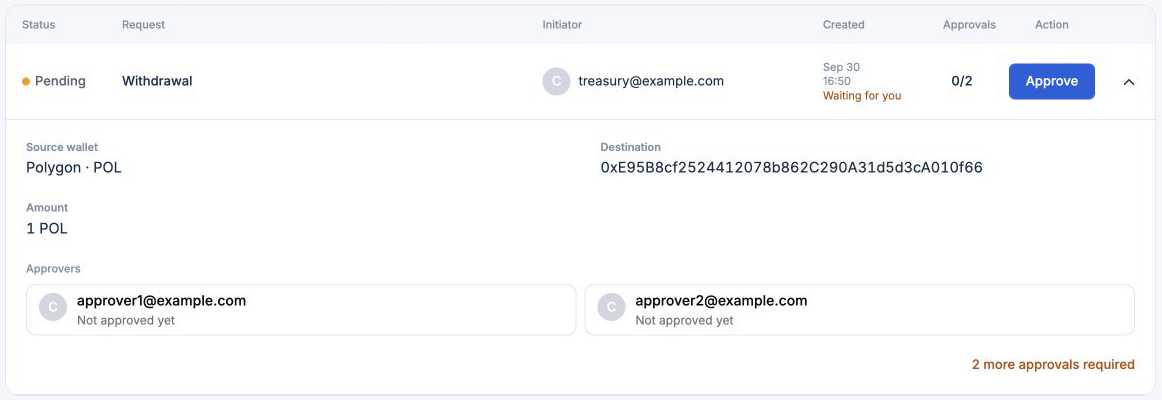
Click Approve, then confirm with your own 2FA code.
When the last required approval comes in, the operation runs on its own. The request moves to Approved and keeps a record of who approved and when.
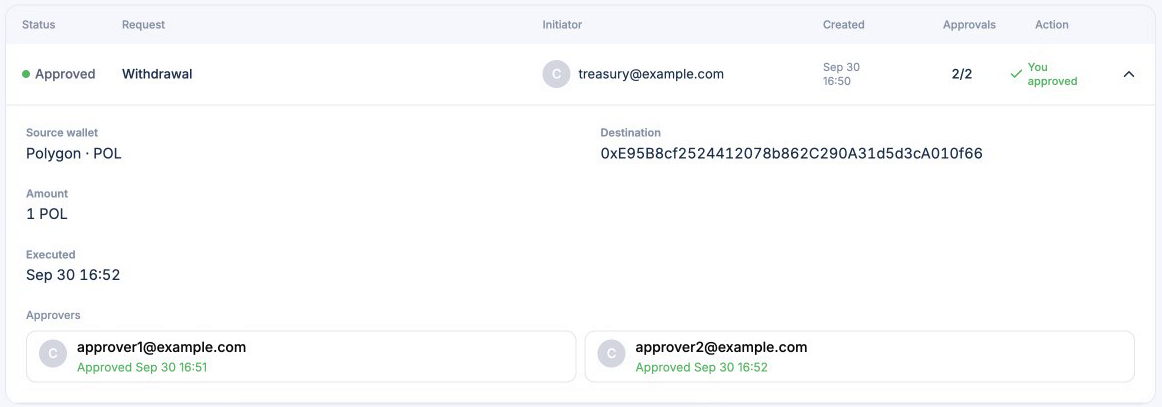
The Owner and approvers see every request. Everyone else sees only the requests they started.
Request statuses
3 states- PendingWaiting for approvals. Nothing has run yet.
- ApprovedEnough approvers signed off and the operation ran.
- RejectedThe approvals were in, but the operation failed a check when it ran, such as a vault lock or low balance. It didn't go through, and the reason is shown on the request.
Good to know
No self-approval
You can't approve a request you started, even if you're an approver.
New requests only
Rule edits affect new requests only. Pending requests keep the approval count they started with.
Other checks still apply
Approvals don't bypass vault locks, balance checks or limits.
Notifications
Email| Sent to | When | |
|---|---|---|
| Approval requested | Every approver except the person who requested | A new request needs approval. |
| Approval collected | The person who requested | An approval came in and more are still needed. |
| Request executed | The person who requested and everyone who approved | The operation ran. |
| Settings updated | The Owner and all approvers | The rule was set up or changed. |
Emails only link to the dashboard. Approving always happens there, behind your own 2FA.
Where to next?
Pick the most useful next step.